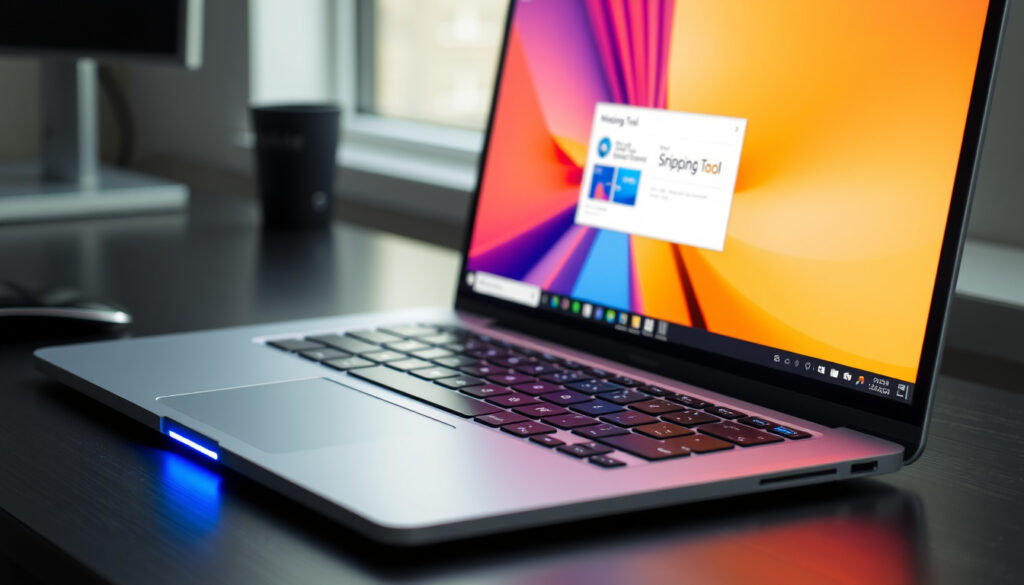
How to Screenshot on Windows: Keyboard Shortcuts & Fixes
Most people know Windows can take screenshots, but the exact key combination slips right after you need it. The good news: once you have the shortcuts memorized, capturing anything from a full-screen image to a single browser window takes two seconds. This guide covers every working method, including why Ctrl+Shift+S often doesn’t fire—and how to fix it fast.
Primary shortcut: Windows + Shift + S · Full screen capture: PrtScn · Active window: Alt + PrtScn · Save directly: Windows + PrtScn · Snipping Tool: Windows + Shift + R
Quick snapshot
- Windows + Shift + S opens the Snipping Tool overlay to select and capture a specific area (Microsoft Support)
- Press PrtScn to copy the entire screen to the clipboard (AOMEI Tech)
- Third-party apps like ShareX or OneDrive may intercept shortcuts (Windows Forum)
- Enterprise group policy settings can silently disable Print Screen behavior without user notification (YouTube Fix Guide)
- Snipping Tool gained screen recording and OCR text extraction in 2026 updates (PixelTaken)
- Windows + Shift + R launches Snipping Tool video recording (Microsoft Support)
Four keyboard shortcuts handle nearly every screenshot task on a Windows PC.
| Shortcut | Result |
|---|---|
| Windows + Shift + S | Opens Snipping Tool overlay |
| Windows + PrtScn | Auto-saves full screen to Pictures\Screenshots |
| PrtScn | Copies full screen to clipboard |
| Alt + PrtScn | Captures active window only |
How do I take a screenshot in Windows?
The fastest way to grab a screenshot on any Windows version is the Print Screen key, usually labeled “PrtScn” and sitting in the upper-right cluster of your keyboard. Hit it once and your entire screen lands on the clipboard, ready to paste into Paint, Word, or any other app. On some laptops, you may need to press Fn + PrtScn if the key doubles as a function key.
When you press PrtScn, the screen dims briefly—a visual confirmation that the capture went through. Open Paint (or any image editor), press Ctrl + V, and your screenshot appears exactly as it was. AOMEI Tech confirms this method works across Windows 10 and Windows 11.
Window-specific capture
Alt + PrtScn isolates the active window—everything else on your screen stays out of the frame. AOMEI Tech documents this shortcut and it is especially useful when you want to grab just one dialog box or browser window without a cluttered desktop behind it.
The implication: if you are sharing a screenshot in an email or document, Alt + PrtScn often produces a cleaner result than cropping a full-screen capture afterward.
How to do a screenshot on PC with keyboard?
Beyond the basic clipboard methods, Windows + PrtScn skips the paste step entirely and saves a PNG file directly. Press those two keys together and the screen dims briefly—your full screenshot lands automatically in the Pictures\Screenshots folder as a timestamped PNG. Windows Forum documents this shortcut and confirms the auto-save behavior.
Windows + PrtScn eliminates two steps (paste, save) and files your screenshot in one keystroke. If you are capturing something you will need later, this is the fastest route.
The catch: this method always captures the full screen. For selective captures, you need the Snipping Tool or its overlay instead.
Print Screen key basics
The Print Screen key sends your screen to the clipboard without saving a file. It is the simplest option when you need quick documentation—a chat window, an error message, a form—and you plan to paste it into a document immediately. The tradeoff: if you forget to paste and press PrtScn again, you lose the previous capture.
Why is Ctrl+Shift+S not working?
The shortcut you want is Windows + Shift + S—not Ctrl + Shift + S. This is one of the most common points of friction; users instinctively reach for Ctrl because it is the standard modifier for Copy (Ctrl + C), but screenshot overlays use the Windows key instead. Microsoft Support confirms Windows + Shift + S opens the snipping tool overlay.
If the shortcut still does nothing after you correct the keys, the Snipping Tool app may be stuck or outdated. Reset it via Settings > Apps > Snipping Tool > Advanced options > Reset. Microsoft Learn recommends updating Snipping Tool from the Microsoft Store as a next step when resets do not resolve the issue.
Common fixes
- Restart Snipping Tool from Settings > Apps > Snipping Tool > Advanced options > Reset
- Check for Windows updates that may have modified the shortcut behavior
- Update Snipping Tool from the Microsoft Store if the app is outdated
- Verify no third-party overlay app (ShareX, OneDrive, gaming utilities) is intercepting the keystroke
- Use the On-Screen Keyboard (Win + Ctrl + O) to test whether a physical key is malfunctioning
What this means: most shortcut failures trace back to a misremembered key combination or a stale app install—both easy to fix without deeper troubleshooting.
Registry or app conflicts
Third-party apps sometimes grab keystrokes before Windows sees them. Windows Forum notes that utilities like ShareX and cloud sync clients (OneDrive) can intercept PrtScn and Shift + S events. Temporarily disable these to isolate the conflict.
How to use Snipping Tool to capture screenshots?
The Snipping Tool is Windows’ built-in screenshot editor. Press Windows + Shift + S and the screen dims; a small toolbar appears at the top of your screen letting you choose a capture mode: rectangular, freeform, window, or full-screen. Microsoft Support documents all four modes.
After selecting an area, a notification pops up inviting you to edit or save the capture. Microsoft Tech Community confirms this notification connects directly to the Snipping Tool editor for annotation, sharing, and quick saving.
Capture modes
- Rectangular snip: drag a box around the exact area you want
- Freeform snip: draw a custom shape around irregular content
- Window snip: click any single window to capture it alone
- Full-screen snip: capture everything on all monitors
The Snipping Tool also supports a delay feature that lets you set a timer before the capture fires—useful for capturing dropdown menus, tooltips, or other transient UI that vanish the moment you click. PixelTaken documents this feature.
Snipping Tool consolidated the older Snip & Sketch app into a single experience. If you are still reaching for a separate snipping utility, Windows 11’s built-in tool now handles capture, annotation, and screen recording in one place.
How to take screenshot on Windows 11, 10 or laptop?
The same core shortcuts work across Windows 10 and Windows 11—PrtScn, Alt + PrtScn, Windows + PrtScn, and Windows + Shift + S all behave consistently between the two versions. PixelTaken notes one major change in Windows 11: PrtScn can be remapped to launch Snipping Tool instead of copying to the clipboard, configurable via Settings > Accessibility > Keyboard.
On laptops where PrtScn shares a key with a function (Fn) key, press FN + PrtScn to trigger the Print Screen action. Windows Forum documents this variation. Some business laptops have the function keys locked by default—toggling Fn Lock or pressing Fn + Esc restores standard behavior.
Windows 11 specifics
Windows 11 introduced 2026 feature updates to the Snipping Tool that include screen recording and OCR text extraction directly within the capture editor. PixelTaken documents these additions. The screen dims briefly on Windows + PrtScn to confirm the capture, and screenshots auto-save with a timestamp in the Pictures\Screenshots folder.
Laptop variations
Laptop keyboards vary by manufacturer. HP, Lenovo, Dell, and ASUS machines often place PrtScn on the upper-right cluster, but the Fn key is required on models where it shares a function key. Check your laptop’s keyboard layout before assuming a broken shortcut.
The pattern: once you know whether your PrtScn key is standalone or shared, the same four shortcuts work on any Windows laptop without additional software.
Windows 11 places a remarkably flexible set of screenshot tools under a handful of keyboard shortcuts. — Windows Forum (Community Guide)
The biggest change is that in Windows 11, Print Screen can launch the Snipping Tool interface instead of instantly saving a screenshot. — PixelTaken (Tech Blog)
Related reading: Windows 11 Screenshot Shortcuts: PrtScn, Win+Shift+S, Snipping Tool Guide · Windows 11 Screenshot Guide: 7 Quick Capture Methods
Shortcuts like Win+Shift+S work across setups, much as detailed in the PC Windows shortcuts guide for everyday PC captures and troubleshooting.
Frequently asked questions
What does Ctrl+Alt+Print Screen do?
Alt + PrtScn captures the currently active window only—everything else on your desktop stays out of the frame. It copies to the clipboard just like PrtScn, but isolates a single window without extra cropping.
How to paste a screenshot with Ctrl+V?
After pressing PrtScn, Alt+PrtScn, or any clipboard-based shortcut, press Ctrl+V in any app that accepts images—Paint, Word, Slack, or an email composer—to drop the screenshot in.
Does the screenshot shortcut work on Windows 7?
PrtScn and Alt+PrtScn work on Windows 7. Windows+PrtScn and Windows+Shift+S require Windows 8 or later. Windows 7 does not have the Snipping Tool overlay or auto-save-to-file feature.
What is the shortcut to screenshot on a Windows HP laptop?
HP laptops use the same Windows shortcuts as any PC. If PrtScn shares a function key, press Fn+PrtScn. The Windows+Shift+S overlay and Windows+PrtScn auto-save work identically on HP hardware.
How to enable Print Screen if it seems disabled?
First, verify the key works in another app (try Ctrl+V in Paint after pressing PrtScn). If nothing pastes, check for conflicting software, try the On-Screen Keyboard (Win+Ctrl+O), and ensure your keyboard is functioning in Windows Settings.
Difference between PrtScn and Windows+PrtScn?
PrtScn copies to the clipboard only—you must paste to save. Windows+PrtScn skips the clipboard entirely and writes a PNG file directly to Pictures\Screenshots. One method is instant and temporary; the other is slower but persistent.
How to take a scrolling screenshot in Windows?
Windows has no built-in scrolling capture. Use the Snipping Tool delay feature to manually piece together long pages, or switch to a third-party tool designed for full-page browser captures if you need to capture an entire scrollable document.
More related posts
 USPS Veterans Day Closure 2025: Post Offices Closed Nov 11
 Cast of Play Dirty 2025: Mark Wahlberg, LaKeith Stanfield & More
 Cast of Hairspray 2007: Full List and Behind-the-Scenes Insights
 Real Madrid vs Leganes – 3-0 Win, Goals and Match Report
 Target RedCard Payment: How to Pay Your Bill
 ASUS ROG Ally X Review: Performance, Specs, and Game Compatibility
 Good Anime to Watch: Top Picks & Recommendations 2026